



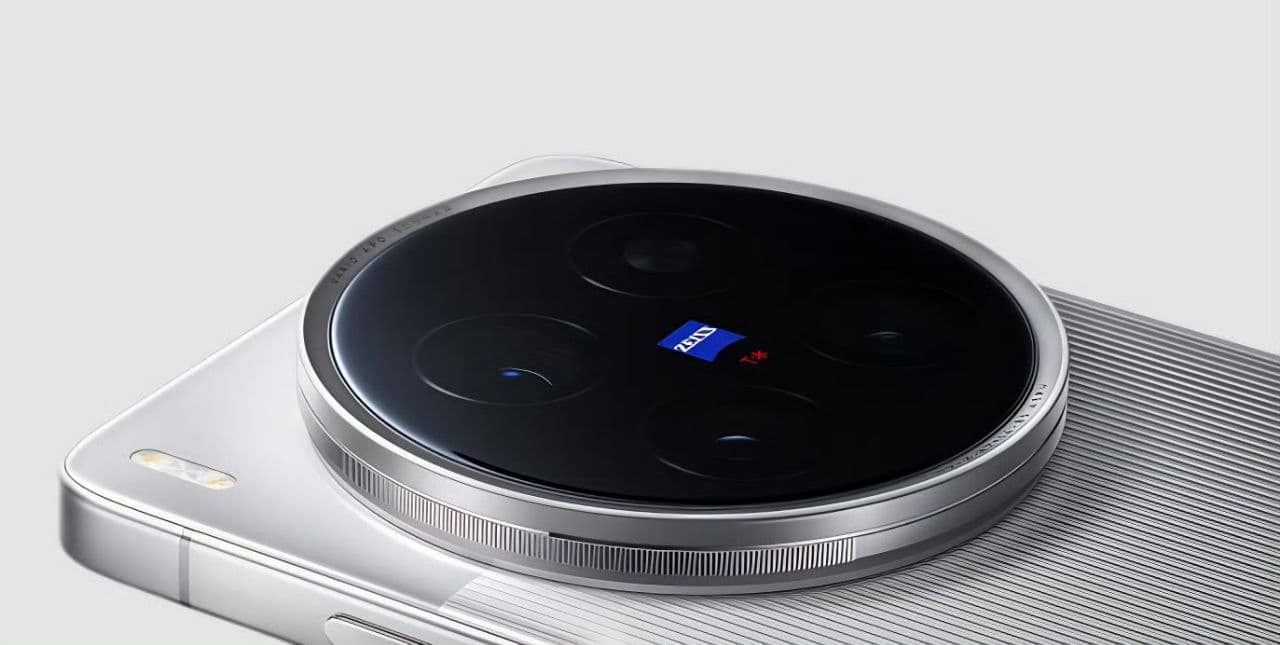
Oppo has a launch event scheduled in the coming days for the launch of the Find X9 Ultra. The device will debut with many features, including support for AirDrop. According to the company, they have collaborated with Google to bring the feature to their upcoming flagship phones. We expect more Oppo phones to get the feature in the future, but the company is currently focusing on the Find X9 Ultra.
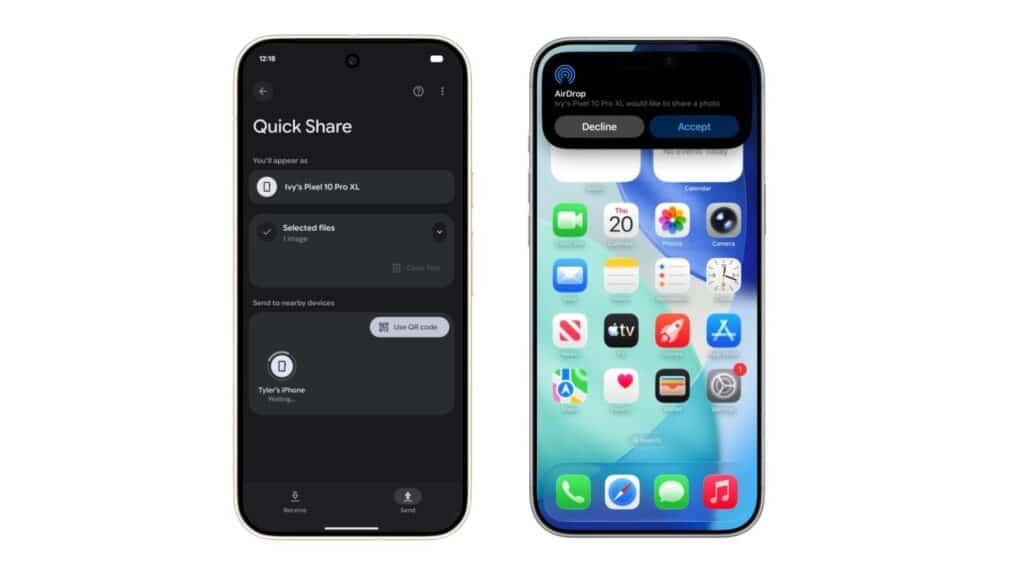
From what we have seen from some Samsung and Pixel phones that currently support AirDrop file sharing, it works wirelessly. It can be used to share files, photos, and videos from your Android device to iPhone, iPad, and MacBook.
Meanwhile, to start sharing files with Apple devices using your OPPO phone, there are a few things that are required. First, your device has to be the Find X9 Ultra. Additionally, you need to have the latest version of the Quick Share app because that is necessary for it to work.
Apple device users need to set the AirDrop setting to “Everyone for 10 minutes” on their iPhone, iPad, or Mac. Then on your OPPO phone, head to Quick Share, select a nearby Apple device, and send a file. Of course, the other user must approve the transfer before it can start. If you are wondering how this file sharing works, it is a combination of Bluetooth and Wi-Fi. These are used to establish a direct connection between the two devices.
How to share files from an Android phone to an iPhone/iPad/Mac
- Before you begin, ensure Quick Share is updated via the Google Play Store or the latest system software.
- On your iPhone, iPad, or Mac, open Settings and go to AirDrop.
- In the AirDrop settings, set visibility to Everyone for 10 Minutes.
- On your Android phone, select the file or photo you want to send, then tap Share.
- Choose Quick Share from the sharing menu.
- Select the nearby Apple device from the list of visible devices.
- On your Apple device, tap or click Accept when the AirDrop prompt appears.
How to Share Files from an Android Phone to iPhone, iPad, or Mac
Sharing files between Android and Apple devices is now much easier, thanks to improvements in Quick Share and AirDrop compatibility. Follow the steps below to get started.
Before You Begin
Make sure your Android device has the latest version of Quick Share installed via the Google Play Store, or that your phone is running the latest system update.
Step-by-Step Guide
- Enable AirDrop on Your Apple Device
- On your iPhone, iPad, or Mac, open Settings and navigate to AirDrop.
- Set visibility to “Everyone for 10 Minutes”.
- Select the File on Android
- Open the file, photo, or video you want to send on your Android device.
- Tap the Share Button
- Choose Quick Share from the sharing menu.
- Pick the Apple Device
- Wait for nearby devices to appear, then select the iPhone, iPad, or Mac you want to send the file to.
- Accept the Transfer on an Apple Device
- A prompt will appear via AirDrop—tap or click Accept to receive the file.
How to Share Files from iPhone, iPad, or Mac to an Android Phone
Sending files the other way around is just as simple. Here’s how to do it:
Step-by-Step Guide
- Enable Quick Share on Android
- Make sure your Android phone has Quick Share turned on and is visible to nearby devices.
- Open AirDrop on an Apple Device
- On your iPhone, iPad, or Mac, open the file you want to send and tap the Share icon.
- Select AirDrop
- Choose AirDrop from the list of sharing options.
- Choose the Android Device
- Your Android phone should appear in the list of nearby devices. Tap it to initiate the transfer.
- Accept the File on Android
- A prompt will appear on your Android device—tap Accept to complete the transfer.
Final Thoughts
With Quick Share and AirDrop working together, transferring files between Android and Apple devices is now seamless and efficient. Whether you’re moving photos, videos, or documents, the process is quick and wireless—no cables or third-party apps required.
via: 9to5google
