



Even with the introduction of Find Hub on Android phones, Google Maps remains one of the best solutions to track and find someone’s location for free. The app can be used to keep track of your kids’ whereabouts, including your partner or spouse. Interestingly, it allows monitoring many people at the same time, unlike spy apps that require a separate subscription for each person you want to track.
With Google Maps, you can know the real-time location of your kids. Husband and Wife can leverage features like “Notification”, which acts as Geofencing to know when your husband, wife, or kids are home from work or office. Employers can track the activities of their employees to ensure they never leave a confined space.
However, before you can track and find someone’s location using Google Maps, we recommend asking for their permission. It’s important to let the person you are tracking their location know about your intentions, as they can disable real-time tracking when they discover their location is being tracked.
Let’s assume you have discussed it with your partner or kids, and they are okay with sharing their location with you. We will explore how you can start tracking their location below. However, before you can successfully track their location, they should be sharing their location with you.
How to share a location with Google Maps
You need to have Google Maps installed on your device. If you are using an Android phone, the app should come pre-installed with your device. You can locate it inside Google Apps or use the search button to search for Maps.
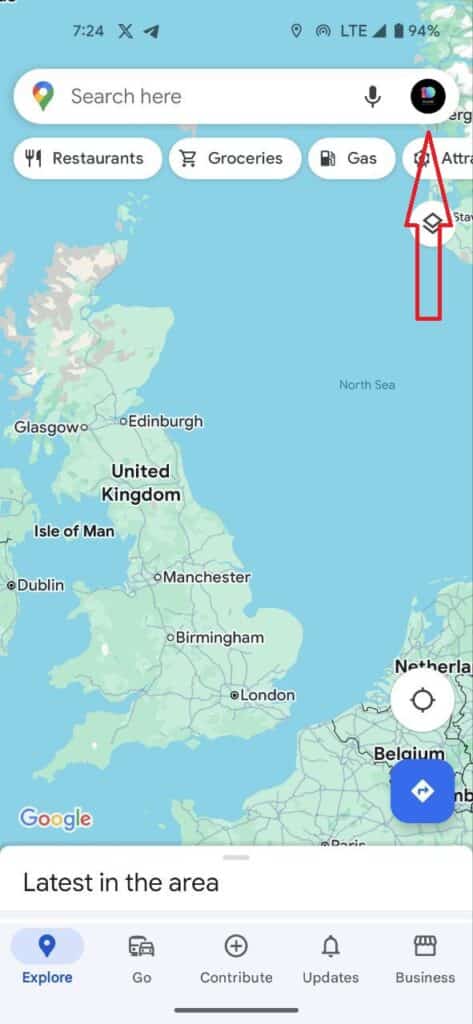
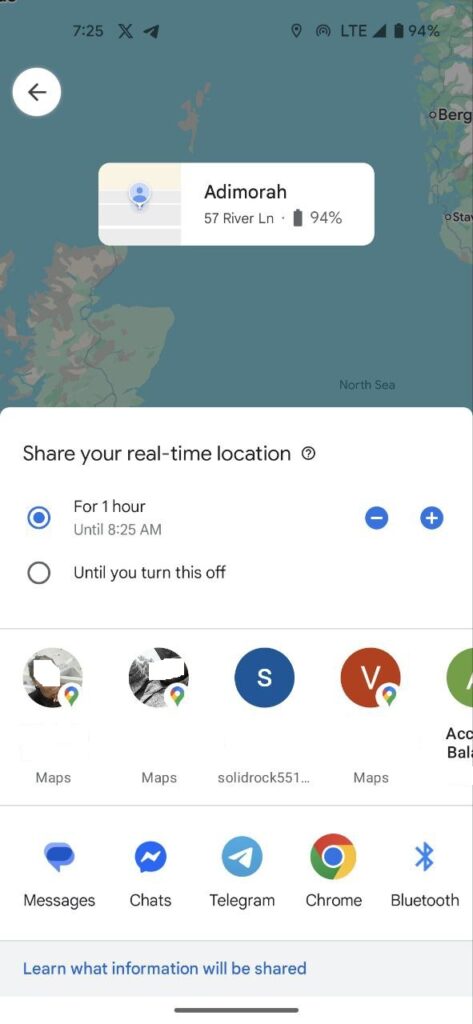
- Launch the app and click on your profile picture
- Tap on location sharing
- Select how long you want to share your location
- Choose your profile (contact or email) and tap share. You can check the complete guide on how to share location with Google Maps here.
How to track and find someone’s location for free on Google Maps
After sharing their location with you on Google Maps, you can track them by simply going to Google Maps on your device.
- Launch the app and tap on your profile icon.
- Select Location sharing, and below the screen, you will see everyone who is sharing their location with you.
- To track their location, tap on their profile, and you will be able to see where they are on Google Maps.
- To get directions to their location, click on “Directions” close to the location on your screen.
Interestingly, there’s an option to add a location and get notified when the person you are tracking enters and leaves that location. However, Google will send a notification to notify them that you wish to be notified when they visit this place, and they have the option of turning it off.
How to enable Geo-fencing using Google Maps
Geofencing with Google Maps only works with people who share their location with you. To enable that, head over to Maps and tap on your profile picture.
- Tap on location sharing, and you will see everyone sharing their location with you.
- Tap on the profile of the person you wish to enable Geo-fencing on
- Click on Notifications and click Add notification
- Click ” Add notification again and use the search bar to enter and select the location.
- You can click on “Choose on Map” and drag the drop pin button to your preferred location.
After entering the location, you will be able to see it on the Maps, click add to confirm, and then save
Once you save the location, you will get a notification with an option to turn it off.
How to stop sharing my location on Google Maps
If you select “until I turn it off” when sharing your location on Google Maps, you will need to manually turn it off; the person you’re sharing your location with can continue seeing your location.
- To stop sharing your location, head to Google Maps and click on your profile picture
- Tap on Location sharing and tap on the profile of the person you are sharing your location with
- Tap the stop at the bottom of the screen.
- On the next window, you can adjust to “for 1 hour” or stop sharing and then click save.
If you select stop sharing, the person will not be able to track your location.
How to use WhatsApp to track and find someone’s location
You can use WhatsApp to track and find someone’s location. It uses Google Maps, but we think it’s more straightforward. Again, the target device must share its location with you before you can start tracking it.
How to share location using WhatsApp
- Launch WhatsApp and open the message of the person you want to share your location with
- Tap on the attachment button and select the location.
- Click on share live location and select how long you wish to share your location, and tap send
How to track someone’s location on Google Maps using WhatsApp
To track their location, tap on the link they shared with you to start tracking their real-time location. However, they can stop sharing their location with you anytime once they click on “stop sharing live location.”
Conclusion
Using Google Maps to track and find someone’s location is free, but you need permission from the person whose location you wish to track. We recommend using this method, as it saves you money and has all the tools you need to keep up with the location of your loved ones. Employers can use the geofencing tool to ensure their employees do not leave their place of work for optimal productivity.
